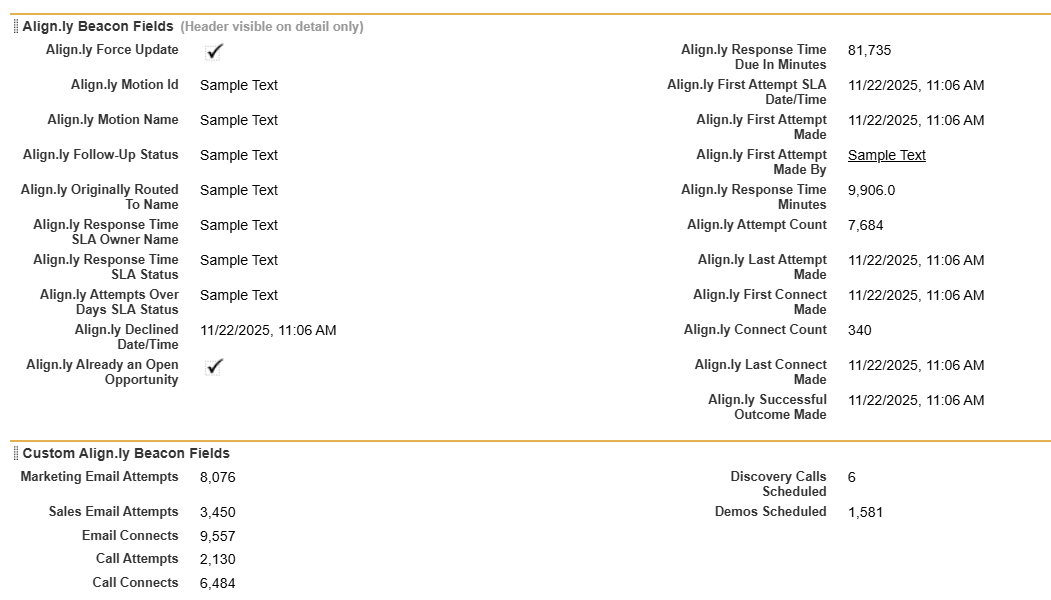
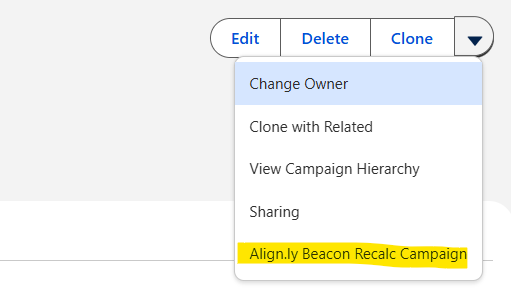
In this step, we are going to make three modifications to your Camapign Lightning Record Page Layout(s): Add a tab for Align.ly Beacon, add the Align.ly Beacon Dashboard
lightning component to the tab, and add the Align.ly Beacon Recalc Campaign button.
Navagate to your Campaign Lightning Record Page Layout
-
In Salesforce, go to Setup.
-
Click on Object Manager
-
Click on Campaign
-
Click on Lightning Record Pages
-
Click into the Lightning Record Page in use and then click the Edit button.
NOTE: If you do not have a Campaign Lightning Record Page you will need to create a new Record Page. We recommend using the Grouped Header and One Region layout template.
Adding a Tab
-
On the Lightning Record Page, click into the existing tabs (most likely "Related" and "Details").
-
In the right sidebar, click Add Tab.
-
Click on the newly created tab and under Tab Label select Custom.
-
Type "Align.ly Beacon" into the Custom Label
-
Click Done
Adding the Align.ly Beacon lightning component
-
On the Lightning Record Page, click into the Align.ly Beacon tab you just created.
-
In the left sidebar under Components, search Align.ly Beacon Dashboard.
-
Drag the Align.ly Beacon Dashboard component into the Align.ly Beacon tab.
Adding the Align.ly Beacon Recalc Campaign button
-
On the Lightning Record Page, click into the Header (Highlights Panel) section with buttons.
-
In the right panel, click Add Action.
-
In Actions, select Align.ly Beacon Recalc Campaign
-
Click Done
Save your Lightning Record Page and you are done with this step!